About Manifesto
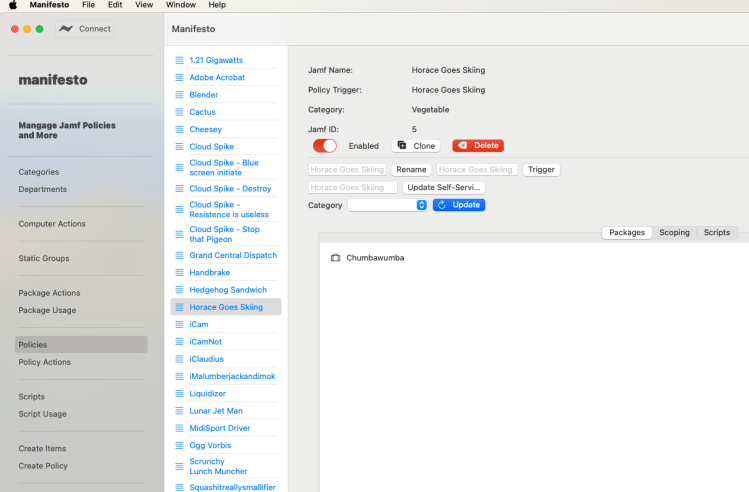
What is Manifesto?
- Manifesto is a tool to help with repetitive tasks in Jamf and to bring together features spread over multiple pages.
- Manifesto can be used for some tasks when you either don’t have access to a computer, or have a stable browser connection.
It is a collection of features that I felt would be useful for a Jamf admin to have in an app form.
It is not designed to access every feature of Jamf but has grown organically based on my own needs as a Jamf admin.
It can particularly help with repetitive tasks in Jamf and brings together features that are spread over multiple pages.
I have found Manifesto particularly useful when needing to make changes to Jamf whilst travelling.
Why would I want Manifesto?
Manifesto has a collections features that Mac admins have found useful in the real world.
- Some save time by doing things tricky in the web interface in a single screen
- Some allow you to run a repetitive task in a batch mode
- Some allow access to a feature not easily visible in the web interface
- Some bring together related features in a single screen
- Some provide a specific element in a simplified interface.
- Because Manifesto does not automatically refresh the screen it is possible to work with an intermittent connection – such as whilst travelling – and do tasks which would normally fail in a web browser.
- Manifesto is free!
Check out the features and see what works for you.
A good way to get familiar with Manifesto is to take a look at the Manifesto feature walkthrough or introductory video.
For more detailed information on Manifesto’s features see below
Detailed Features
Login (getting started)
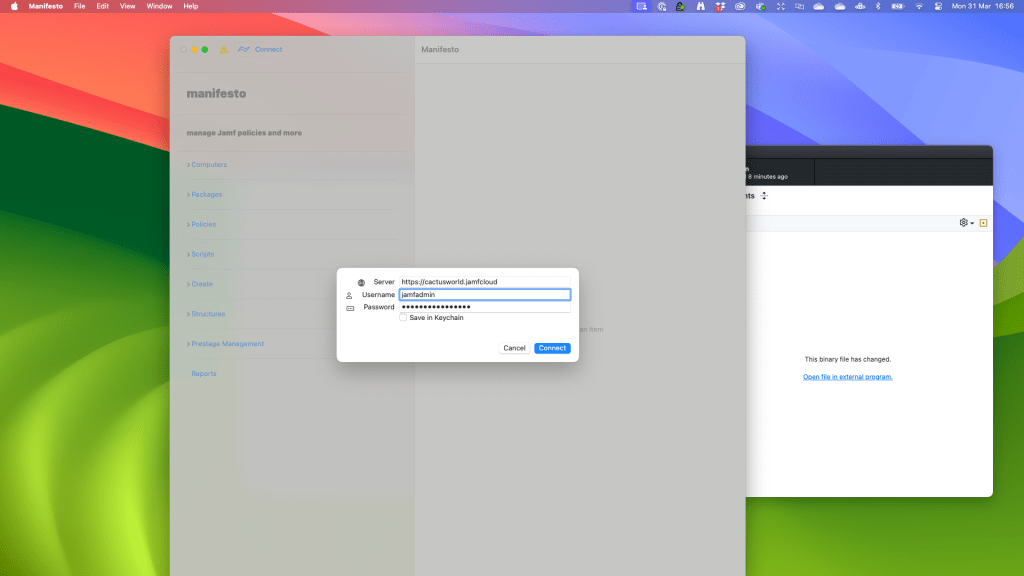
Login Window
To login to the application simply provide the address of your JSS and your credentials. There is an option to save your details in the keychain.
Note: currently, Manifesto can only store a single server at any one time. This is something will be addressed in future versions.
Access Rights/Permissions
The access rights to your server in Manifesto will be exactly the same as defined in the web interface by your Jamf administrator. Manifesto is designed to give easy access to commonly used features and is best used if custom rights are setup by your administrator that give you rights to the features you need.
Computers
Single Actions
- View individual computer records and check key details (Name, ID, Department, Building, Serial etc)
- Delete the device
- Edit the department assigned to a device
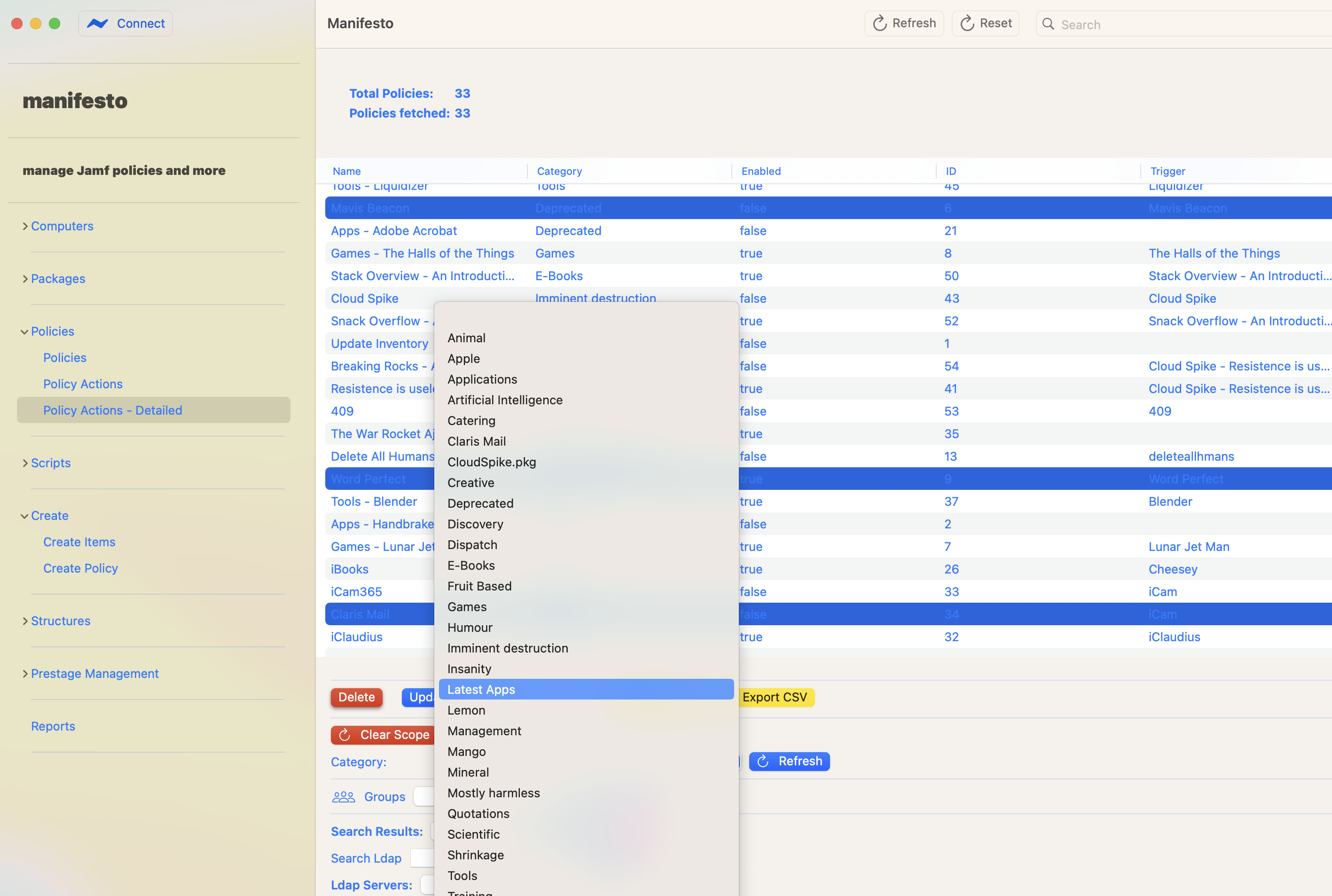
Mass Actions - View all computers and sort by User, Department, Building, Model, Checkin etc.
- Edit the assigned department on a group of devices based upon the above criteria
- Delete devices based upon the above criteria
- Clear pending or failed MDM commands on selected computers
Packages
Single Actions
- View details of a package
- Delete a package
- Create new package record (in Create section)
Mass Actions - Analyse all packages and see which are not assigned to a policy
- Delete packages
Policies
Single Actions
- View all policies and sort by ID (indicating which policies are most recent and which oldest)
- Check for recent policies
Mass Actions
- Policy actions detailed View and update policies in table view sorted by multiple elements – e.g. category, enabled statusThis allows selection of multiple policies in a specific category and state – e.g. all Adobe policies that are disabled to be selected and deleted (or moved to a different category)
Scripts
Single Actions
- View Script Content
- Delete Script
Mass Actions - View script usage in policies and delete unused scripts
- Delete multiple Scripts
Create
The create screen lets you quickly create related objects that you often need to create at once in a single screen. For example: buildings, categories and departments
Single Actions
- Create New Buildings
- Create New Categories
- Create New Departments
- Create new policies
If you suddenly need a new policy setup whilst on the move you can create it here.
Add packages and scripts (with parameters) or import an existing policy as a new item.
Mass Actions
Structures
- Buildings
Create
Delete
Rename - Categories
Create
Delete
Rename - Departments
Create
Delete
Rename - Static Groups
Create
Delete
Rename
Add member
Remove member - Config Profiles
Flush config pending or failed profiles – either for specifically selected devices or assigned by group.
Prestages
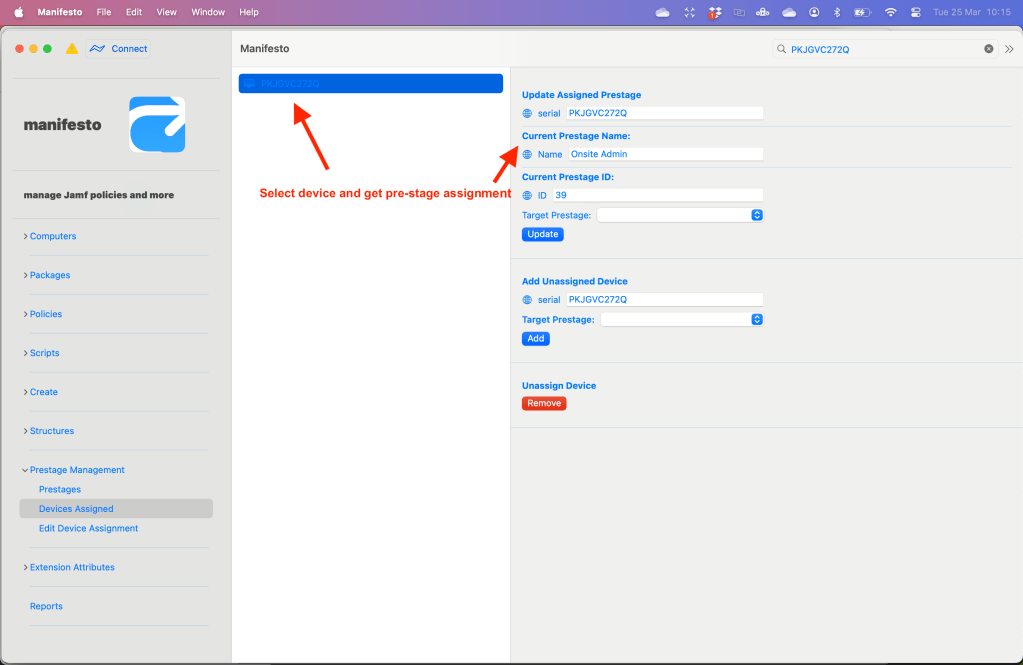
- View prestage device membership
- Edit computer Pre-stage assignment
- View computer Pre-stage assignment
In order to see what prestage a device is assigned to search via the serial number
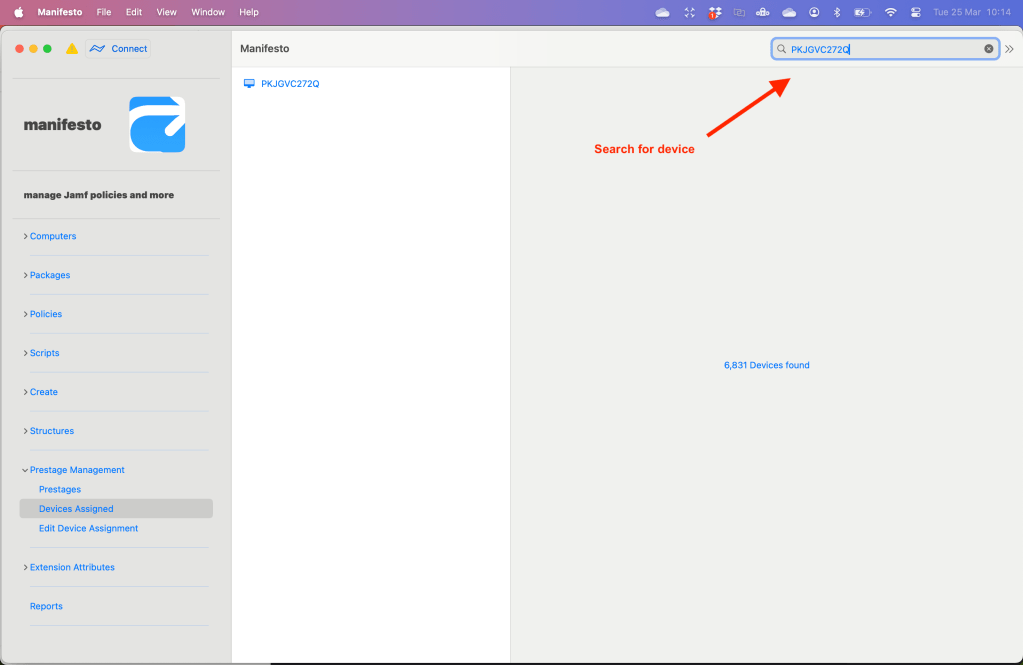
Now select the device and get the prestage assignment
Reports
Download details of the server
Download sorted lists:
policies by the most recent
Manifesto on Github
Download Manifesto
Manifesto License
Feature Request
- Maybe there’s a feature that you want but isn’t included?
We love to hear people’s suggestions. If you have a suggestion send us a request!
support@ethamoos.co.uk
 ethaMoos